
Appearance
View and acknowledge alerts
Threshold violations and rule alert actions can generate alert records. A record contains its source, trigger time and value, recovery details, and acknowledgment state.
Operators, Managers, and Owners can view and handle alerts in permitted projects.
View alerts
- Open the bell at the top right, enter the notification list, select a project, and click Alert records. You can also choose View alert from an alert notification's menu.
- Browse active or historical records, and filter by severity or acknowledgment. From an individual alert, use Back to alert records to return to the list.
- Open a record and check its source point, trigger value, and time.
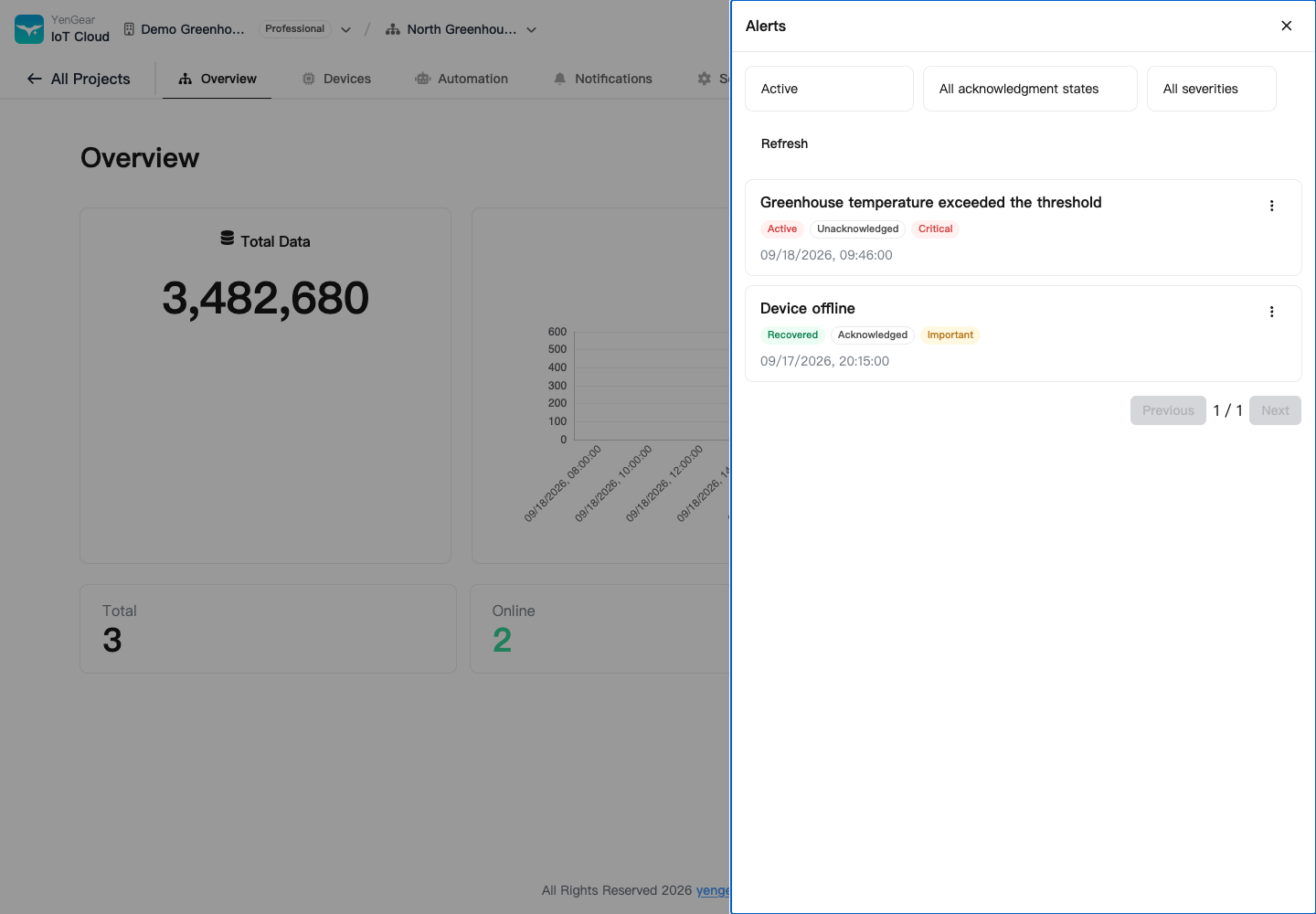
Active, recovered, and acknowledged
| State | Meaning |
|---|---|
| Active | The condition continues, or qualifying recovery data has not arrived |
| Recovered | The platform recorded recovery time and details |
| Unacknowledged | No person has marked the alert as acknowledged |
| Acknowledged | A person has confirmed awareness of the alert |
Acknowledgment does not clear the condition or stop equipment. An acknowledged alert may remain active, and a recovered alert may still be unacknowledged.
Both triggering and recovery require the condition to persist across valid reports for at least 30 seconds, with subsequent data completing the evaluation. A brief excursion does not immediately create an alert. A device that stops reporting does not automatically recover.
Acknowledge an alert
Open its details, compare the trigger and current data, and click Acknowledge. Check the field condition afterward and wait for recovery data or resolve the fault through your maintenance procedure.
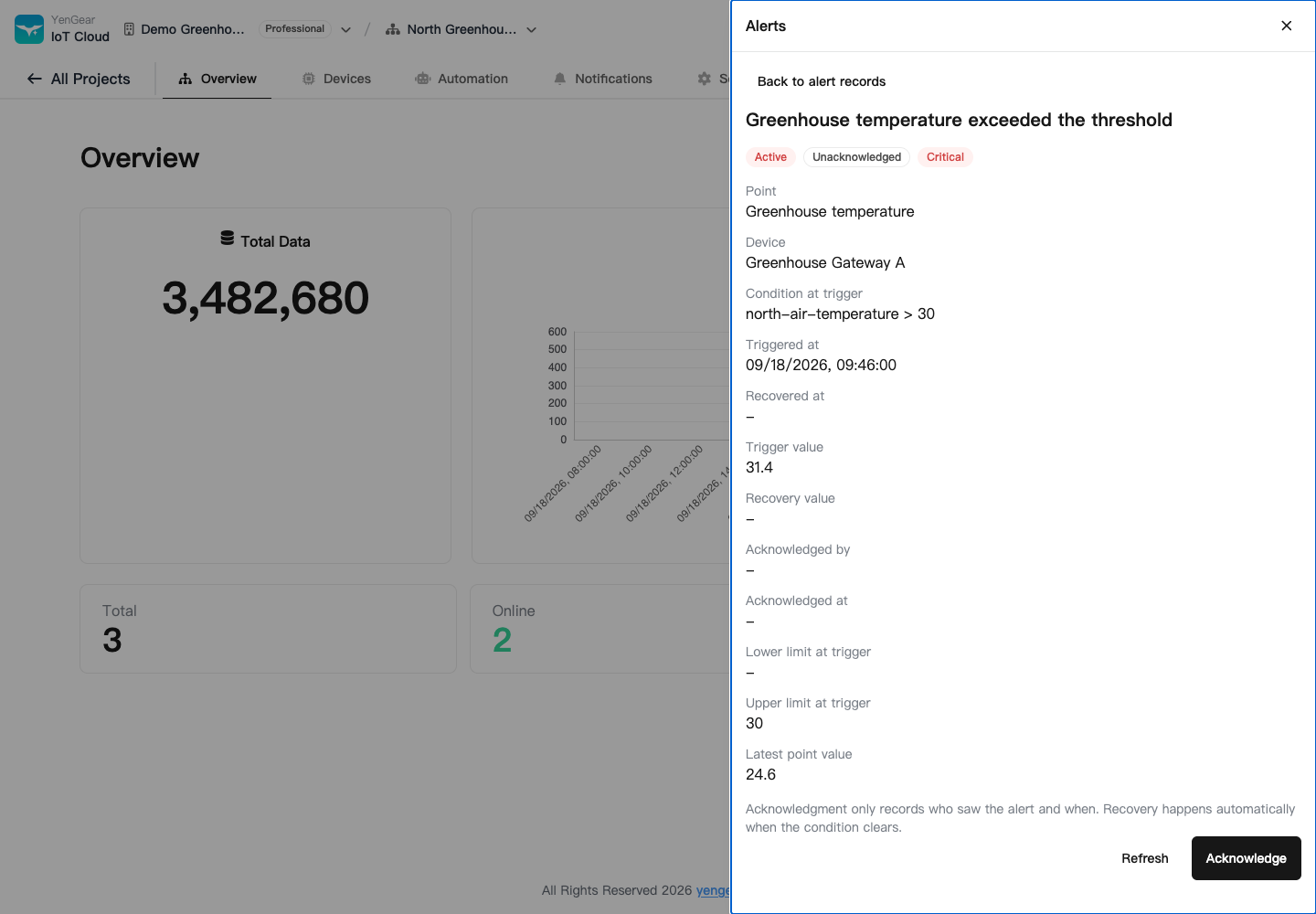
For an alert that remains active, check that the device is still reporting and current values meet the recovery condition. Offline status is not evidence that the fault has cleared.
To change the normal range, see Point thresholds. For external messages, see Email and SMS.