
Appearance
View live and historical data
The device overview shows the latest values in point cards. Open a point to view its history and the charts, states, or maps available for that type.
View live readings
- Open Project → Devices, select the device, and open Overview.
- Check each point's name, value, unit, and update time.
- Check device connectivity as well, so a retained old value is not mistaken for a current reading.
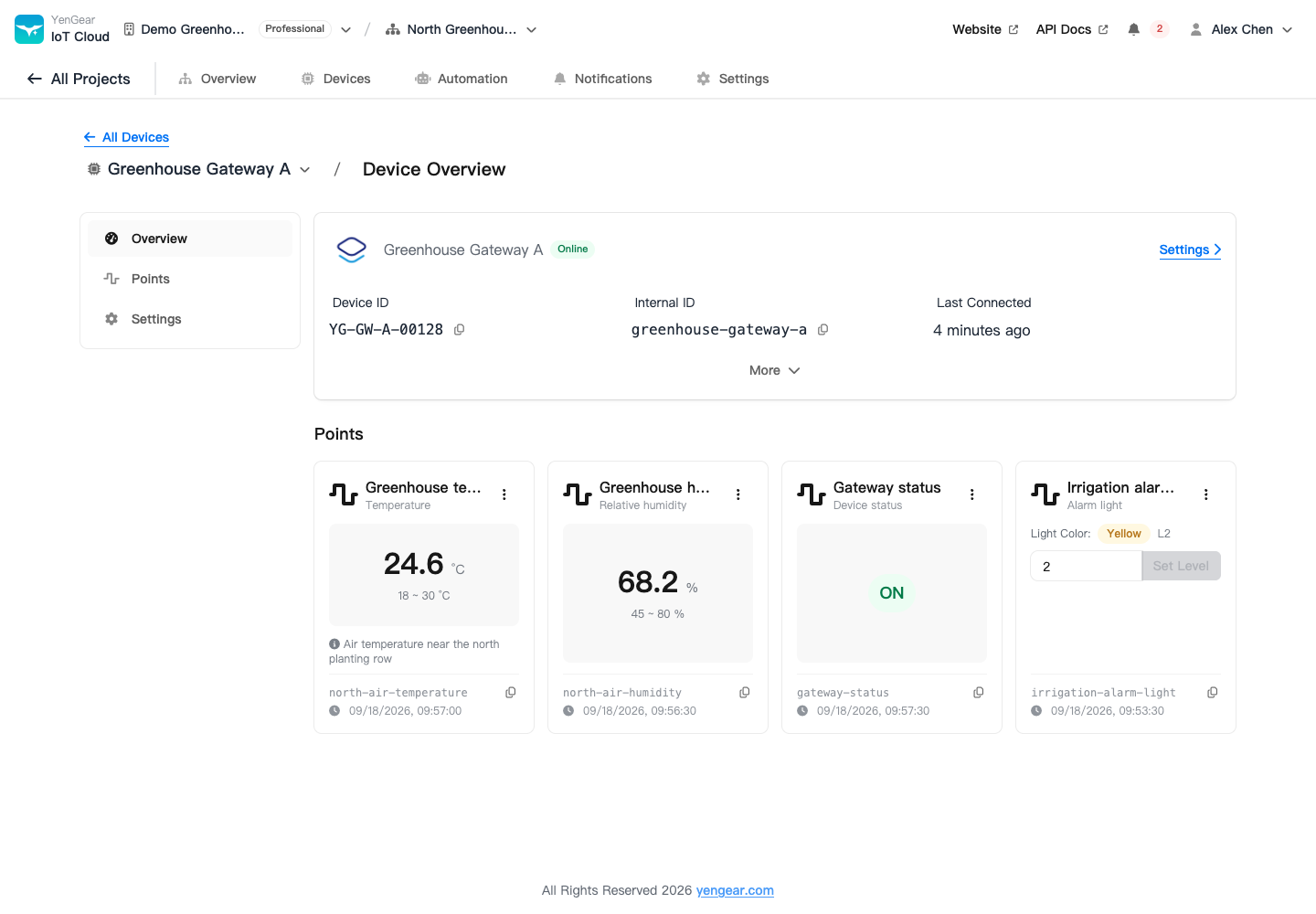
Disabled points do not appear as normal display points in the overview. If a point is missing, check its enabled status under Points.
Query history
- Open the target point.
- Select 1 hour, 6 hours, 1 day, or 7 days above the history chart. The page loads that range immediately.
- Inspect values on the chart and check units, timestamps, and trends.
- To download records, use Export historical data.
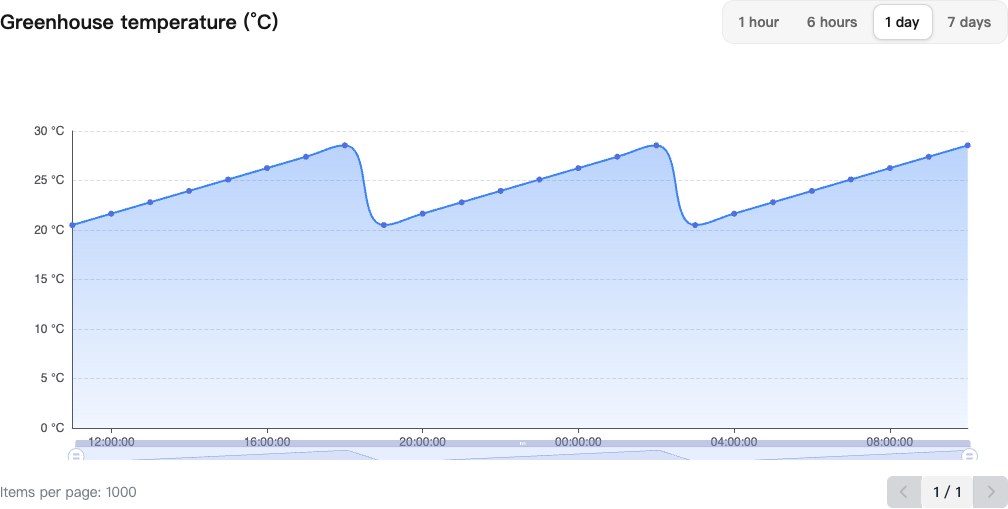
Numeric points use charts; status points show state changes. GPS points provide positions and tracks, while image points show images and history. Creating a GPS or image type does not produce data if the device has not reported it.
Time and update intervals
Check the project's time hint when querying or reading records. The API's t field is a Unix timestamp. When converting it to local time, avoid applying the time-zone offset twice.
Update timing depends on device sampling, reporting intervals, and site connectivity. Compare several successive update times to determine whether the device is still reporting.
Live readings exist but history is empty
Live values and historical records use different storage paths. Check the query range, point creation time, device debug mode, and historical storage. A newly created point has no measurements from before its creation.
If a GPS track is missing, check for valid coordinates and positioning timestamps in the selected range. See Troubleshooting.