
Appearance
Sign-in and account settings
Sign in at YenGear IoT Cloud. After signing in, check the organization at the top left, then select a project.
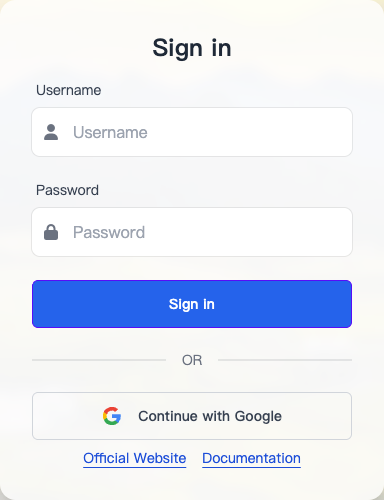
Sign in
- Open the sign-in page, enter your username and password, and submit.
- The English sign-in page offers Continue with Google. For WeChat sign-in, switch the page language to Chinese and use its WeChat option. Complete authorization with the selected provider.
- Select the organization you want to work in at the top left.
- Open a project to access devices, automation, and notifications.
If your account has no organization, create one or ask the Owner of an existing organization to add you. If a project is missing, check your current organization and project access.
Edit your profile or password
Open the account menu at the top right and select Account. Use the profile, password, or social account settings as needed.
To change your password, enter your current password and the new password, repeat the new password, and save. Use a password you do not use on other sites. Sign out after using a shared computer.
Link a sign-in provider
In social account settings, select the link option for WeChat or Google and complete authorization. The linked account then appears in the list. Before unlinking it, keep another working sign-in method.
A linked sign-in provider does not grant organization membership or project access.
No data after signing in
- No organization: ask its Owner to add you, or create your own organization.
- No projects: ask the Owner to create a project or grant access to an existing one.
- You can view but cannot edit: check your role, project scope, and plan status.
Next, create a project or connect a temperature and humidity sensor.