
Appearance
Configure email and SMS notifications
Managers and Owners can add email addresses or mainland China mobile numbers to a project. Each configuration uses one method and one destination, with one or more notification types. Add a separate configuration for each recipient.
Add a notification method
- Open the project and select Notifications in the top navigation to open notification settings.
- Click Add notification method and choose email or SMS.
- Enter one email address or mainland China mobile number.
- Select the required alert, system, and recommendation types.
- Save, then choose Send test from the configuration menu.
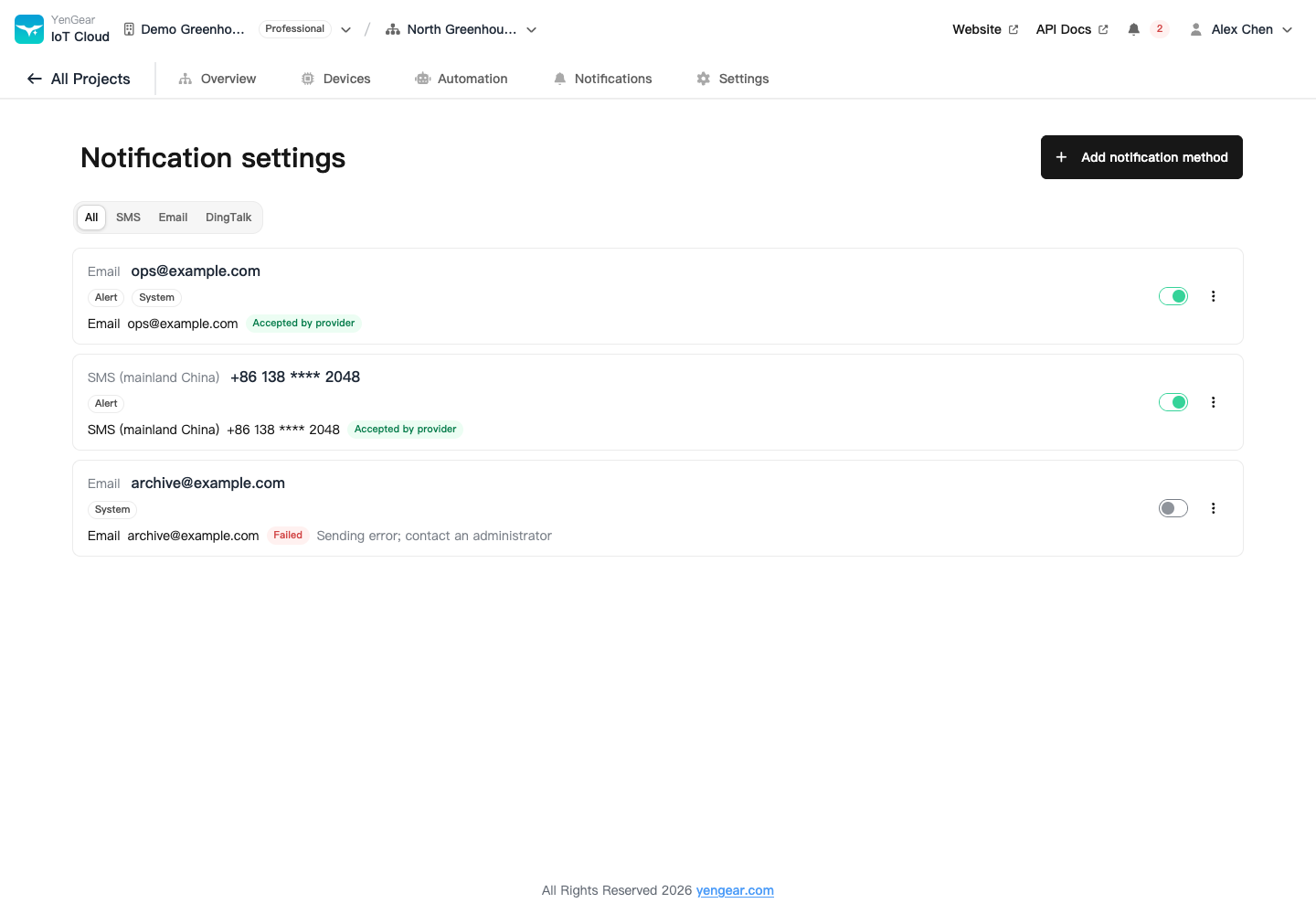
New configurations currently support email and SMS. The DingTalk filter does not indicate that DingTalk delivery is available.
Check delivery
After sending a test, inspect the delivery result and the recipient's inbox or phone. A successful test verifies that test only. Business messages also require a matching notification type and a corresponding project event.
If messages do not arrive, check:
- Enabled status, destination, and selected notification types.
- Whether delivery is pending or failed.
- Spam folders, mobile receiving restrictions, and plan status.
If the destination is correct but delivery keeps failing, keep the error details and ask the platform administrator to check the sending service.
Pause or delete
Disable a configuration to pause it and enable it again later. Deletion preserves historical delivery results.
External sending pauses when the organization plan enters read-only mode. Renewal does not resend notifications from that period. Check in-app messages and email or SMS delivery results separately.