Appearance
Point types and custom types
A point type defines a channel's meaning and affects its label, unit, icon, data display, and controls. Modbus settings still determine how the sensor registers are read.
Choose a type
Open the Point Type selector while adding or editing a point, then search by name. The platform provides shared types, and organizations can maintain their own types.
| Source | Type values | Scope |
|---|---|---|
| Shared types | 1–999 | Predefined by the platform and used across organizations |
| Organization types | 1000 and above | Custom types with values unique within the organization |
Use an existing type with the same meaning where possible. Create an organization type when you need a custom name or unit.
Display and controls
| Category | Display or action |
|---|---|
| Numeric sensor | Current value, unit, history chart, thresholds |
| Switch or status | State display; controllable switches provide on and off |
| Motor | Forward, reverse, stop, and status |
| GPS | Location and track data |
| Image | Latest image and history |
| Numeric display / display device | Display content and content settings |
| Audible-visual alarm | Alarm level and corresponding state |
Device support also limits the available actions. Giving a custom type the same name as a shared control type does not add that type's protocol or actions.
Create an organization type
A Manager or Owner can open Settings → Point Types, create a type, and enter its name, type value, unit, and value type. Add an icon and description as needed.
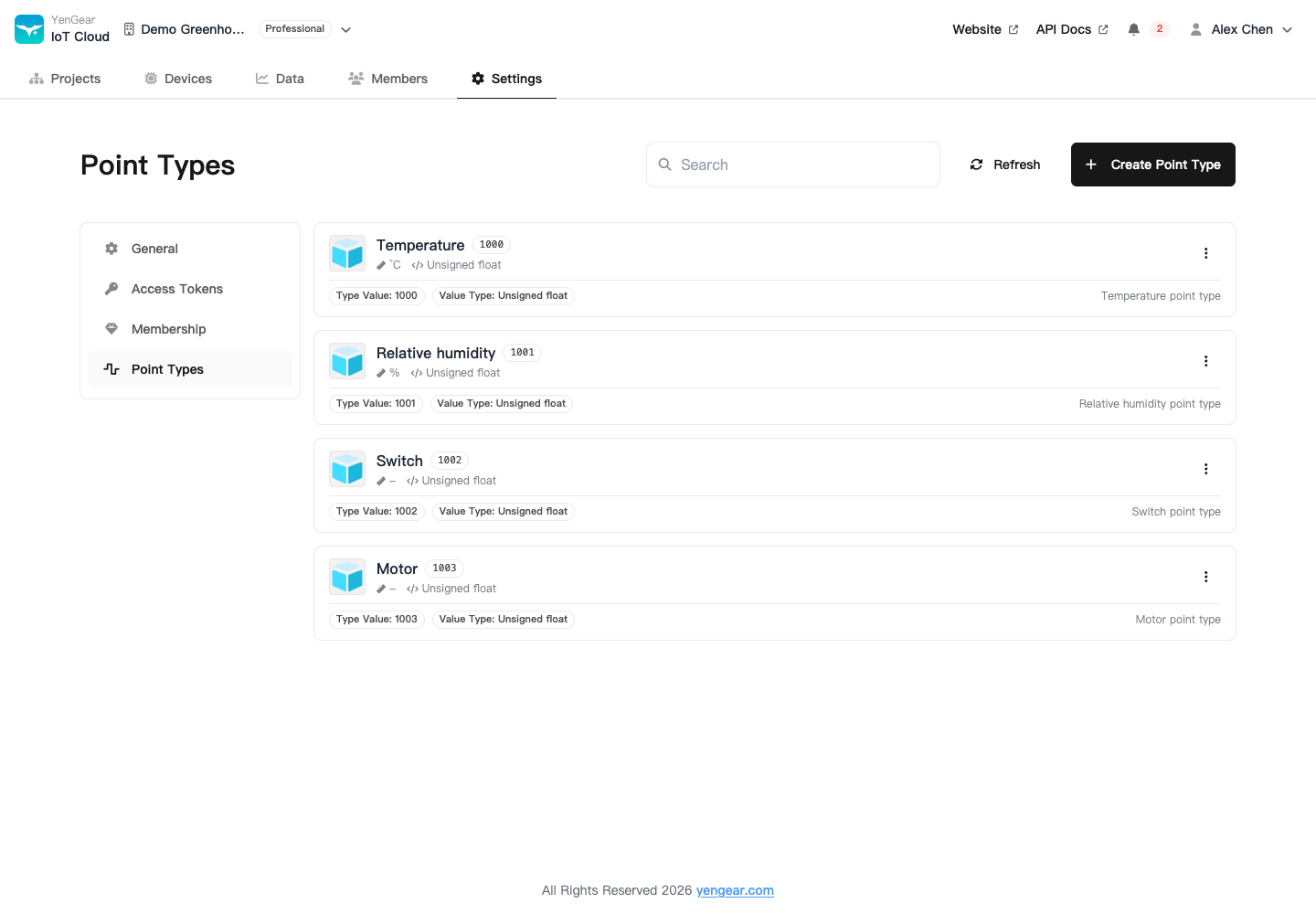
After saving, select the new organization type in the point editor. Fill in the language-specific names if you need bilingual display.
Keep meanings stable
Reuse the same type for the same physical quantity where possible, and match the unit to the decoded value. Avoid repurposing a type value already used by external integrations. Check dependent points, rules, and receiving systems before changing it.