
Appearance
Create and manage organizations
An organization is a shared workspace for a team. It holds projects, devices, members, access tokens, and forwarding profiles. One account can belong to multiple organizations.
Create an organization
- Sign in and open the organization selector at the top left.
- Choose the option to create an organization. Enter a name, check the generated identifier, and save. The identifier accepts lowercase letters, numbers, and hyphens and cannot be changed after creation. If your account has no organization, you can also create one from the onboarding page.
- Check that the selector shows your new organization before creating projects or adding members.
The name is for display. The identifier is used in URLs and API requests. See Identifiers.
Edit the name or logo
The Owner can open Settings → General to change the name or logo and copy the organization identifier.
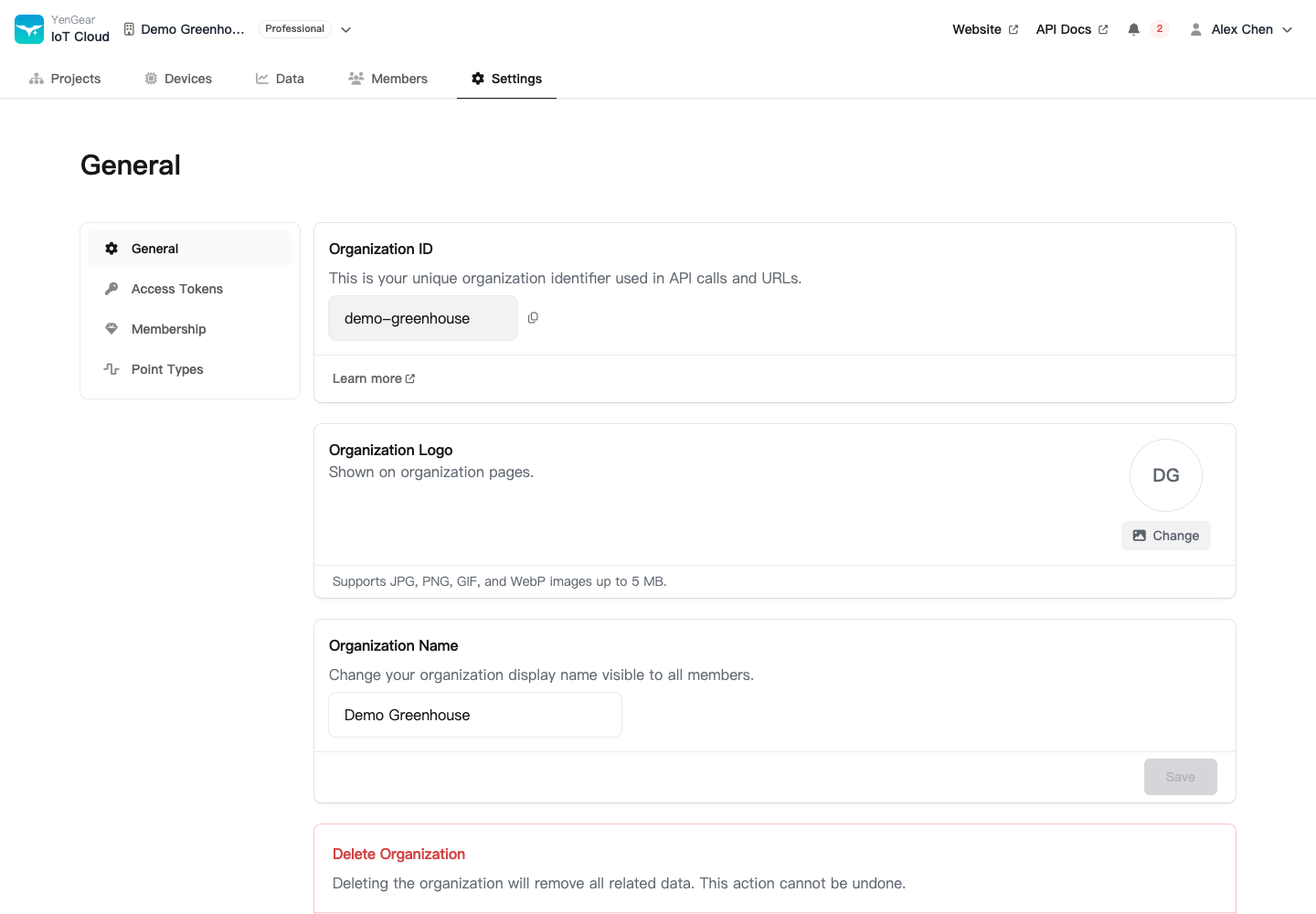
Changing the display name does not change the identifier used in API requests. After switching organizations, check the selected project before making changes.
Add members
The Owner adds accounts and assigns roles and project access under Members. See Add and manage members.
Leave or delete an organization
Members can leave the current organization through the account menu. Access ends immediately. The Owner cannot use the ordinary member leave action.
Delete an organization
Deleting an organization affects its projects, device assignments, and related data and cannot be undone. Export records you need to retain and check external systems, tokens, and field devices before deleting it.
The Owner can delete the organization from Settings → General. To remove one person's access, remove that member instead.