
Appearance
Set point thresholds
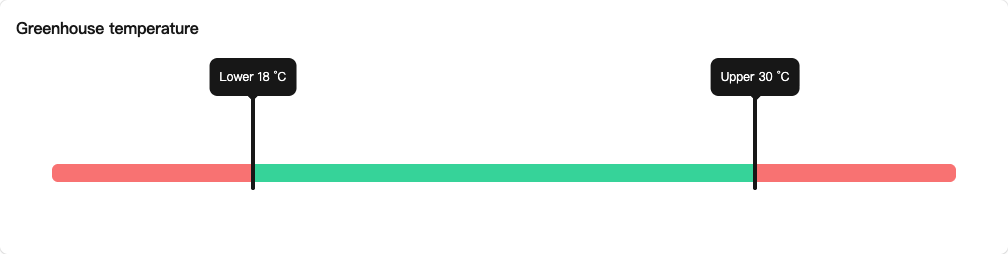
Sensor points can have minimum and maximum values that define a normal range. Thresholds do not change the sensor reading; scale factor and offset handle that conversion.
A Manager or Owner can edit thresholds on devices that support point configuration.
Set the range
- Find the sensor card in the device Overview.
- Open its menu and select Set thresholds.
- Drag a minimum or maximum marker and release to save. Double-click a marker for precise input.
- In the value dialog, enter the boundary, choose whether it is enabled, and save.
- Check the normal range shown on the card.
When both boundaries are enabled, the minimum must be less than the maximum; equal values are not accepted. Each boundary can be enabled separately; a disabled boundary is excluded from threshold checks.
Thresholds, alerts, and rules
- Point thresholds define the normal range. A violation can generate a threshold alert.
- See Alerts for active, recovered, and acknowledgment states.
- To turn on a fan when temperature rises, also create an automation rule. Setting a threshold does not add a fan control action.
- To send alerts outside the platform, configure email or SMS.
The reading is still incorrect
If the room is about 25 °C but the platform shows 250 °C, check the sensor manual, data format, and scale factor. Expanding the threshold range would hide the error.