
Appearance
Configure and use project screens
Project screens display monitoring and control points in groups. A Manager or Owner configures these groups in the web interface, then selects a scope on an industrial screen or in a browser.
Configure point groups
- Open Project → Settings → Screen Point Groups.
- Click New Group and enter a name.
- Select the project points to display.
- Add screen display names if needed and adjust point order.
- Save and expand the preview to check names, groups, and pagination.
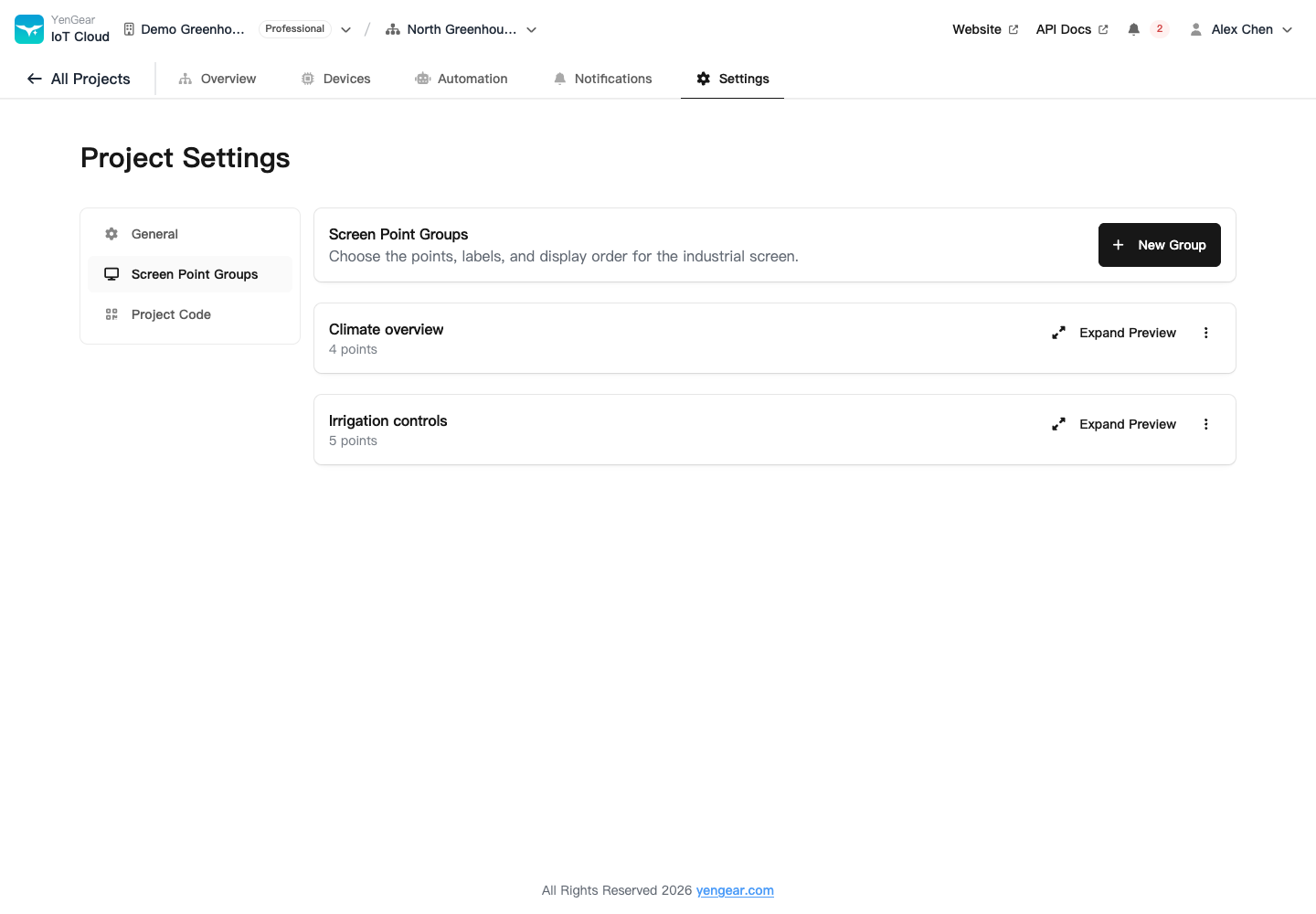
Screen aliases change screen labels without replacing the original point names. Controls are disabled in the configuration preview, so viewing it does not send commands.
Open the screen
Open the cloud screen, sign in, enter settings, and choose an organization, project, and point group. Return to the screen view.
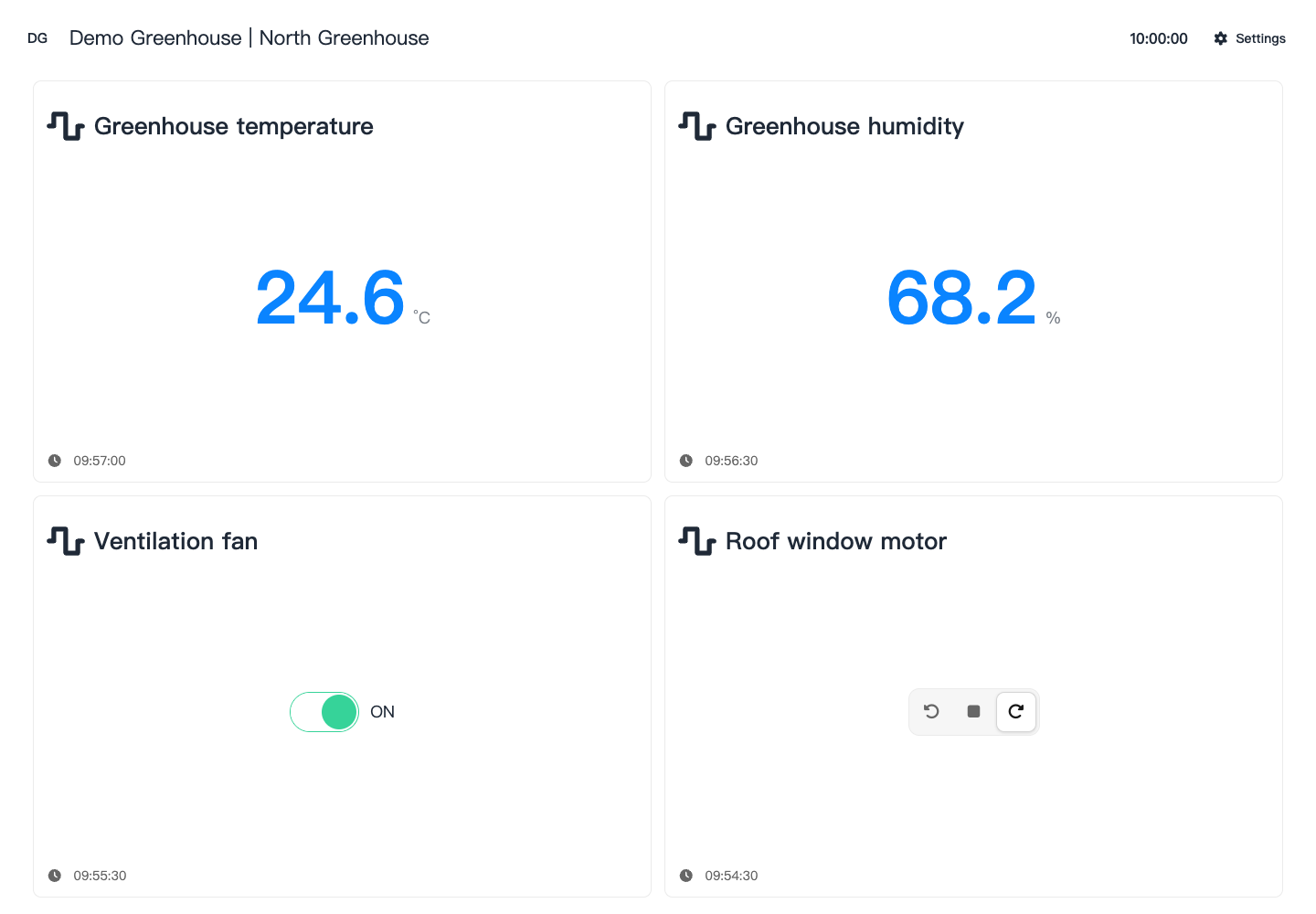
An industrial screen needs network access to the platform. Its installation entry and device shell differ from a normal browser. A browser preview does not verify installation on the industrial screen.
Daily use
The selected point groups determine what appears. Equipment controls still depend on account role, plan status, device connectivity, and supported actions.
If no points appear, check that the web configuration was saved and includes points, then check the screen's selected project and group. For stale values or offline devices, check communication and update times. Retained values are not current equipment feedback.