
Appearance
Create and manage automation rules
Rules run ordered control or alert actions when a point's value or state meets a condition. For example, turn on a ventilation fan when temperature exceeds 30 °C.
Managers and Owners can create, edit, enable, and disable rules. Members with project access can view them.
Create a rule
- Open Project → Automation → Rules and click New Rule.
- Enter a name and description, then select the condition point.
- For a numeric point, select a comparison and enter a value. For a switch or motor state, select the required state.
- Choose an action. For control, select the target point and action; for an alert, set its title if needed.
- Click Add Action for additional results and arrange their execution order from top to bottom.
- Check the summary and enabled status, then save.
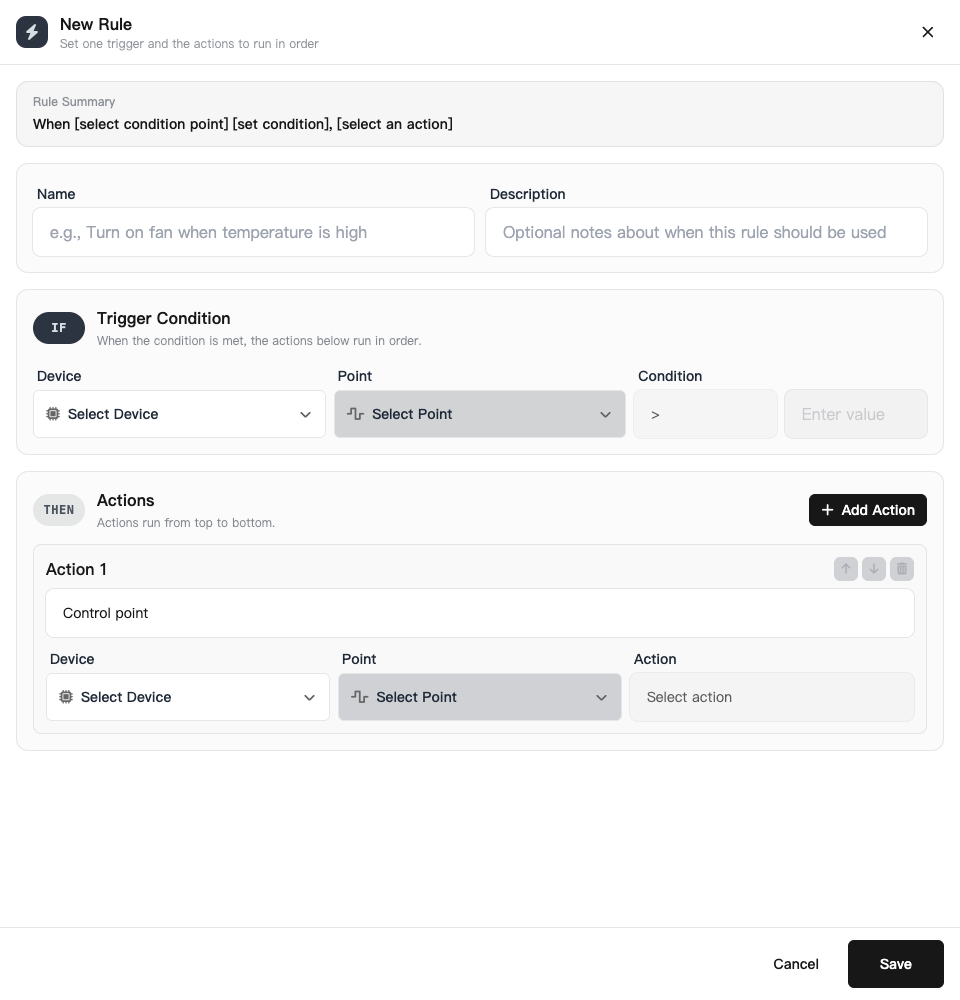
The current editor uses one condition and multiple ordered actions. A control target can appear only once in a rule. Rule comparisons are independent of point thresholds; editing a threshold does not replace a saved rule condition.
Example: high-temperature ventilation
| Item | Example |
|---|---|
| Condition point | Greenhouse temperature |
| Condition | Greater than 30 °C |
| Action | Turn on the ventilation fan |
| Optional action | Generate a high-temperature alert |
This is an example configuration. A 30 °C threshold is not a ventilation standard for every crop or site. If a lower temperature should stop the fan, create a separate rule and leave an appropriate gap between the on and off thresholds to prevent rapid switching.
Alert actions and external delivery are configured separately. Add email or SMS settings if you need messages outside the platform.
Health and execution records
Rule details show health, recent evaluation or triggering information, and execution records. A deleted target or incompatible configuration can make a rule unhealthy. Fix the reference and check subsequent runs.
- State already satisfied: the target is already in the required state; no duplicate command was sent.
- Gateway accepted: the gateway accepted the command; check the reported point state.
- Partial failure / failure: open the record and inspect the action and error.
After deleting or transferring a point or device, review rules that reference it. Cloud rules depend on incoming data and device communication. Use hardware protection for interlocks, limits, and emergency stops.