
Appearance
Create and manage projects
A project groups the devices at one site. For example, use separate projects for a greenhouse, cold room, and pumping station.
The organization Owner creates, transfers, and deletes projects. Managers can maintain existing project settings.
Create a project
- Switch to the target organization and open Projects.
- Click New Project and enter a recognizable site name, such as “North Greenhouse.”
- Save, open the project, and add a device.
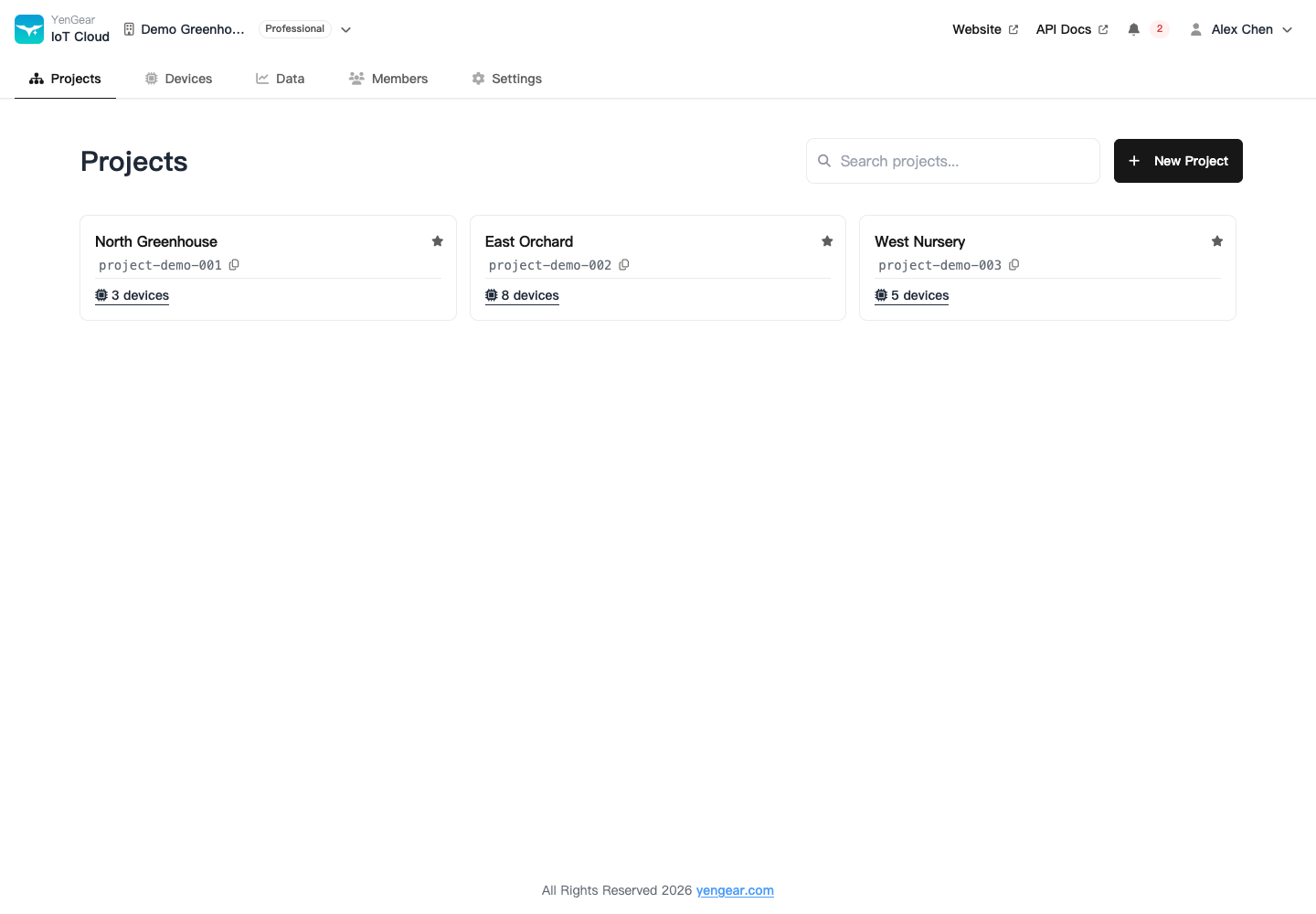
Project cards show the name, project ID, and device count. Inside a project, the overview shows data volume and device connectivity statistics; the device page lists its devices.
Edit project settings
Open Settings → General within the project to edit its name, copy its ID, set a scene image, or manage open access.
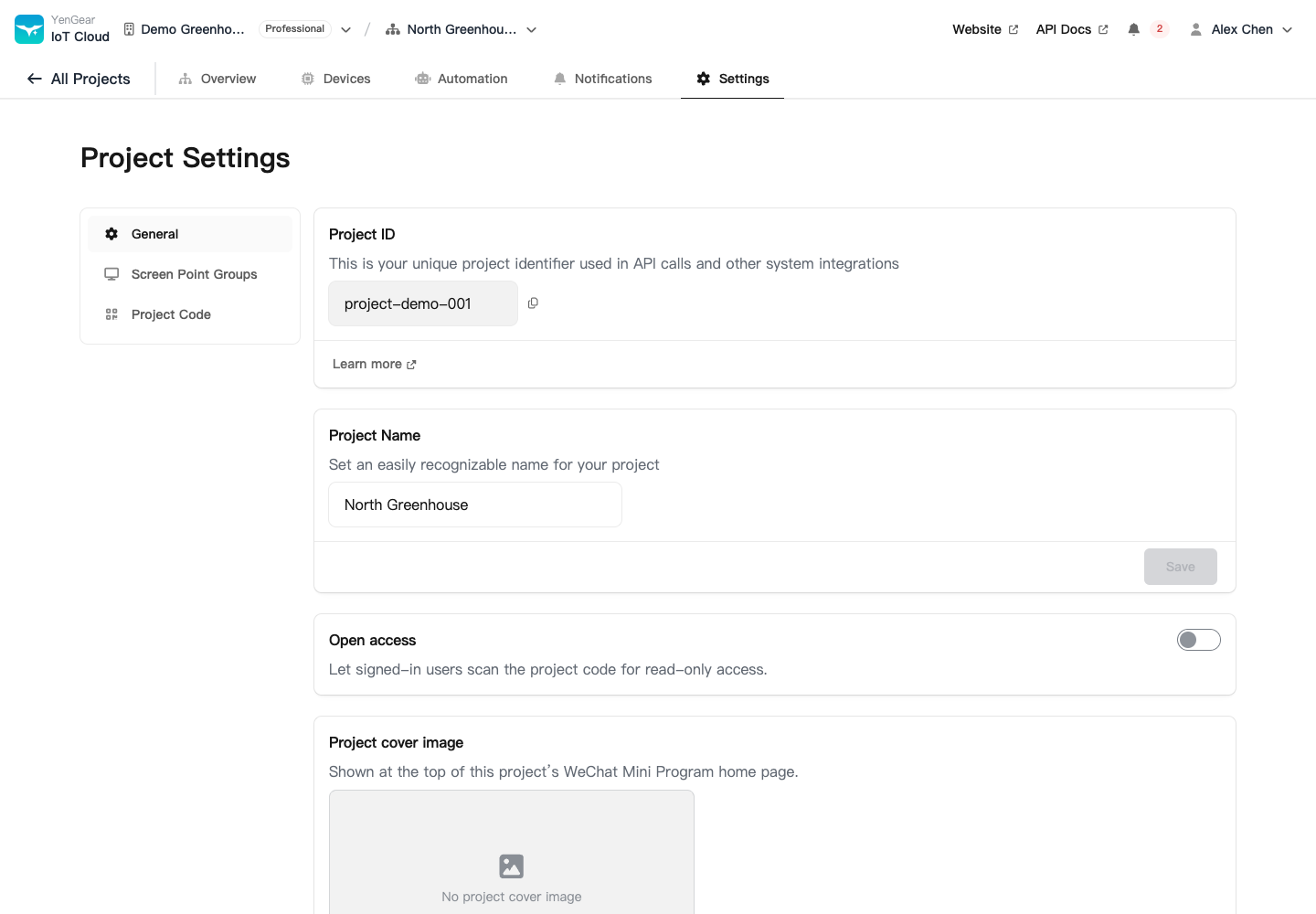
The scene image appears on the Mini Program project home page. External systems use the project ID to locate the project. Renaming the project does not change that ID.
Project time
Schedules and exports use the project's local time. Check the time hint before setting a task, querying history, or exporting data. When working across time zones, use the project time shown rather than assuming it matches your computer. If the project time cannot be loaded, refresh before saving a task.
Open access
When Open access is enabled, signed-in users can scan the project code for read-only access. Check whether the data is suitable for people outside your team before enabling it. With open access disabled, ordinary access requires project permissions.
Open access does not grant configuration or control permissions. See Mobile apps and project codes.
Transfer or delete a project
To transfer a project, enter the destination organization identifier and check the confirmation details. After transfer, review member access and external integrations in the destination organization.
Delete a project
Deleting a project cannot be undone and affects its devices and related data. Download records you need and review schedules, rules, and external integrations first.
Transfer and delete actions are under Settings → General. To change the assignment of one device, use device transfer.