
Appearance
View and handle in-app notifications
In-app notifications include alerts, system messages, and recommendations. Operators, Managers, and Owners can view notifications for permitted projects.
Open notifications
Click the bell at the top right, then View All to open the notification list. Check the current project filter when opening notifications within a project. From the organization view, you can switch projects.
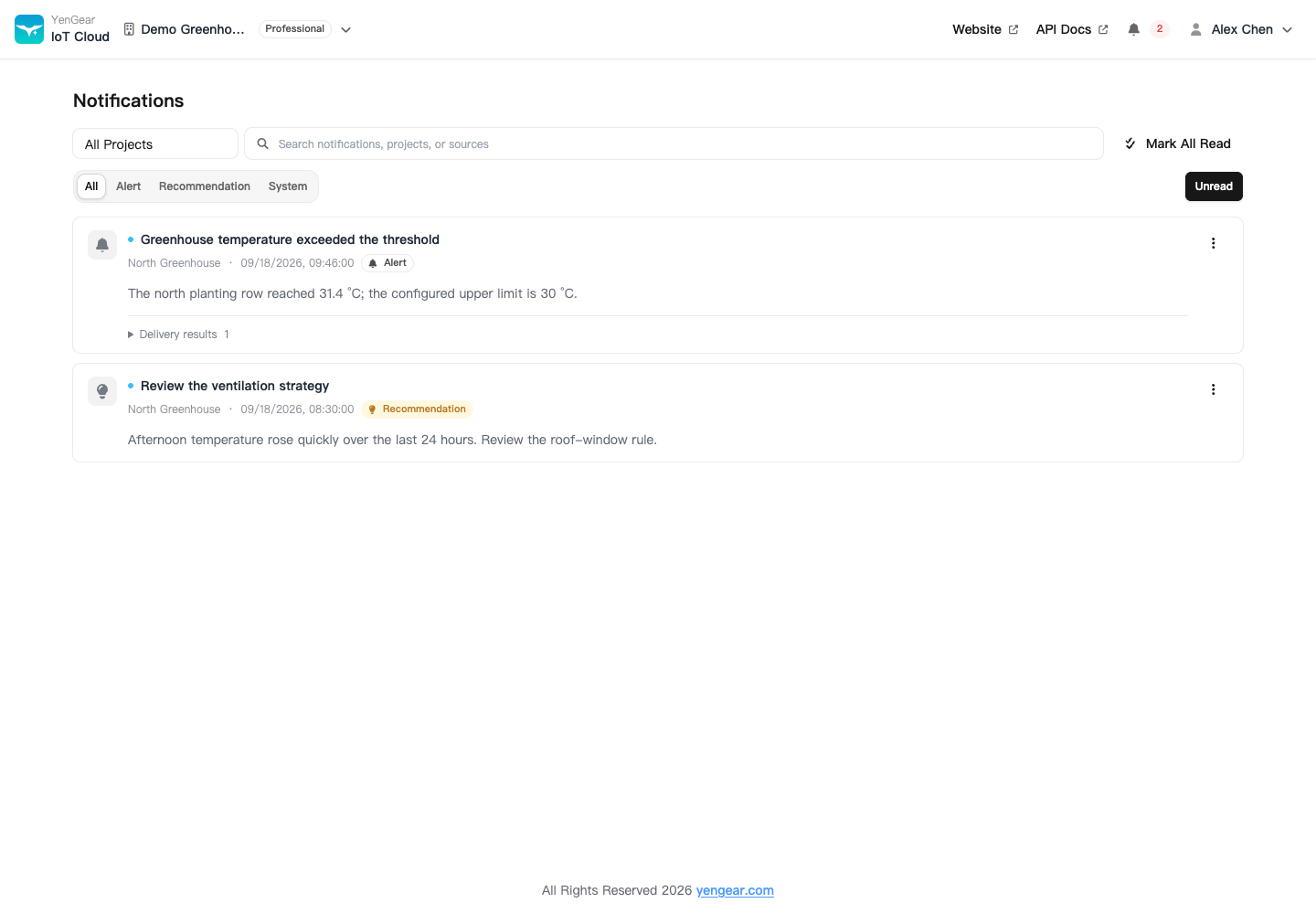
Filter by project, type, or read status, or search notifications, projects, and sources. If the list is empty, clear filters before deciding there are no messages.
Read and archive
- Mark as read: records that the notification has been read.
- Mark all as read: check the organization or project scope in the confirmation first.
- Archive: removes a notification from the everyday list. If it still needs follow-up, mark it as read and archive it after handling it.
Notification read status and alert acknowledgment are separate. Reading an alert notification does not recover the alert or change equipment state.
Handle recommendations
Recommendation notifications offer actions such as accept and ignore. Read the recommendation and its scope before accepting. Configuration changes require a Manager or Owner. Accepting a recommendation is separate from marking the message as read; inspect the returned reason if execution fails.
Email and SMS
In-app messages and external delivery are separate. If an in-app notification arrives without an email or SMS, check notification methods and delivery results rather than creating the same alert again.