
Appearance
Configure points
A point is a measurement, status, or control channel on a device. A Manager or Owner can configure points on supported devices. Models with fixed configurations may provide only preset channels or view access.
Add a point
- Open Project → Devices → your device → Points.
- Open the Add Point menu and choose Add Point.
- Enter a name and select a point type.
- Expand Modbus Read Configuration and enter the slave ID, function code, read address, and data index.
- Expand Value decoding, select the data format and byte order, and set the scale factor and offset.
- Add notes if needed, save, and return to the device overview to check the value and update time.
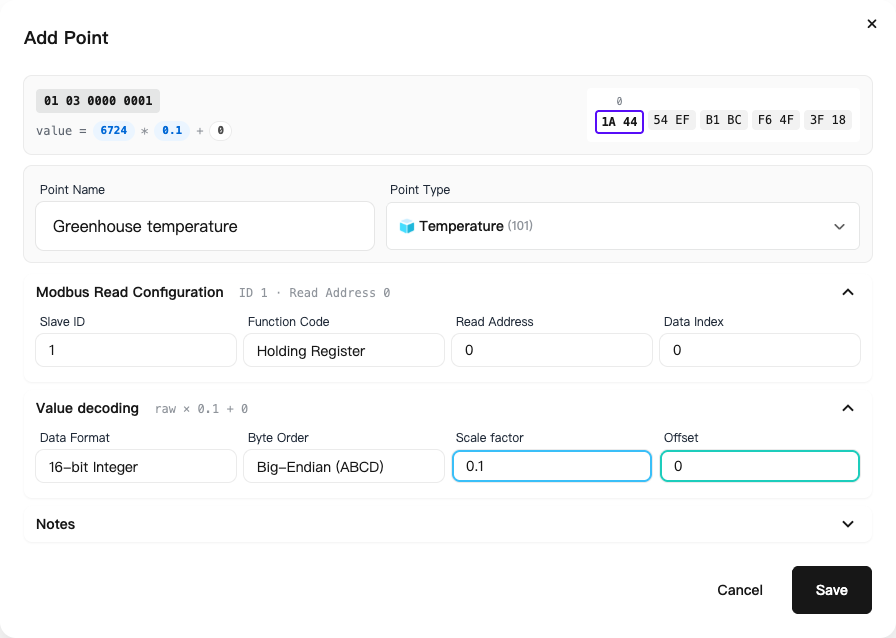
For example, “Greenhouse temperature” is a name and “Temperature” is a type. A correct type with an incorrect register address still produces invalid readings. See the Modbus reference.
Enable or disable a point
Use the enabled switch in the point list. Disabled points no longer appear as normal display points in the overview, and their controls are unavailable. Disable a channel when you want to retain its configuration without using it for now.
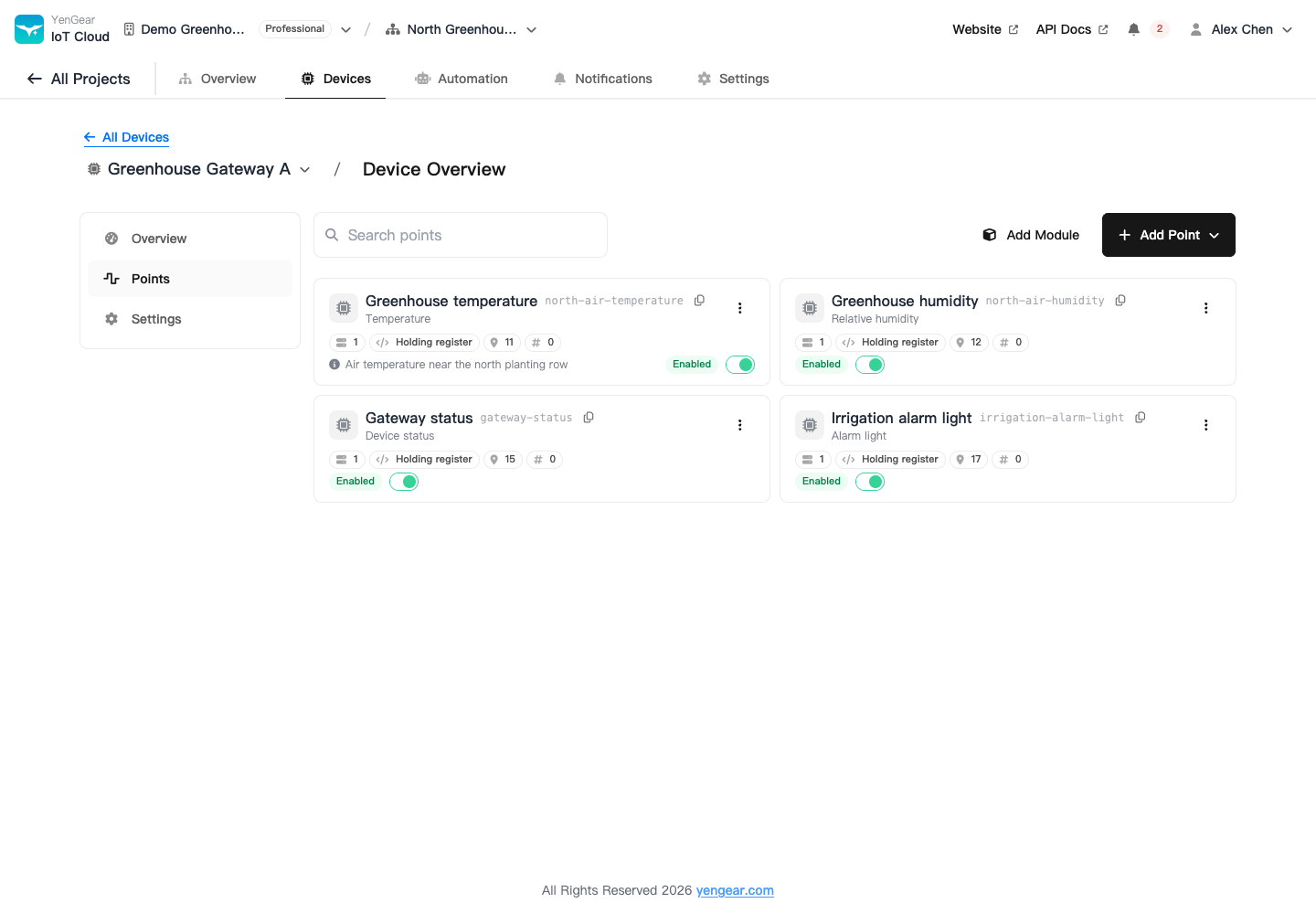
Reuse point configurations
| Action | Use |
|---|---|
| Duplicate | Create a similar point on the same device, then change its name and address |
| Copy / paste | Copy a point to the clipboard and paste it onto a target device; check the slave ID |
| Export / import points | Back up configuration or import it onto a compatible device |
| Add Module | Add a group of points from a device module preset |
After bulk changes, check each slave, address, data index, and type to prevent duplicate or overwritten configurations. Point exports contain settings; use data export for historical readings.
Thresholds and controls
Set a sensor's normal range under point thresholds. For switches, motors, displays, and audible-visual alarms, see Control devices. After changing a point type, also review schedules and rules that reference it.