
Appearance
Add and manage members
The organization Owner uses Members to add accounts, assign roles, and set project access. Managers maintain project settings but do not manage organization membership.
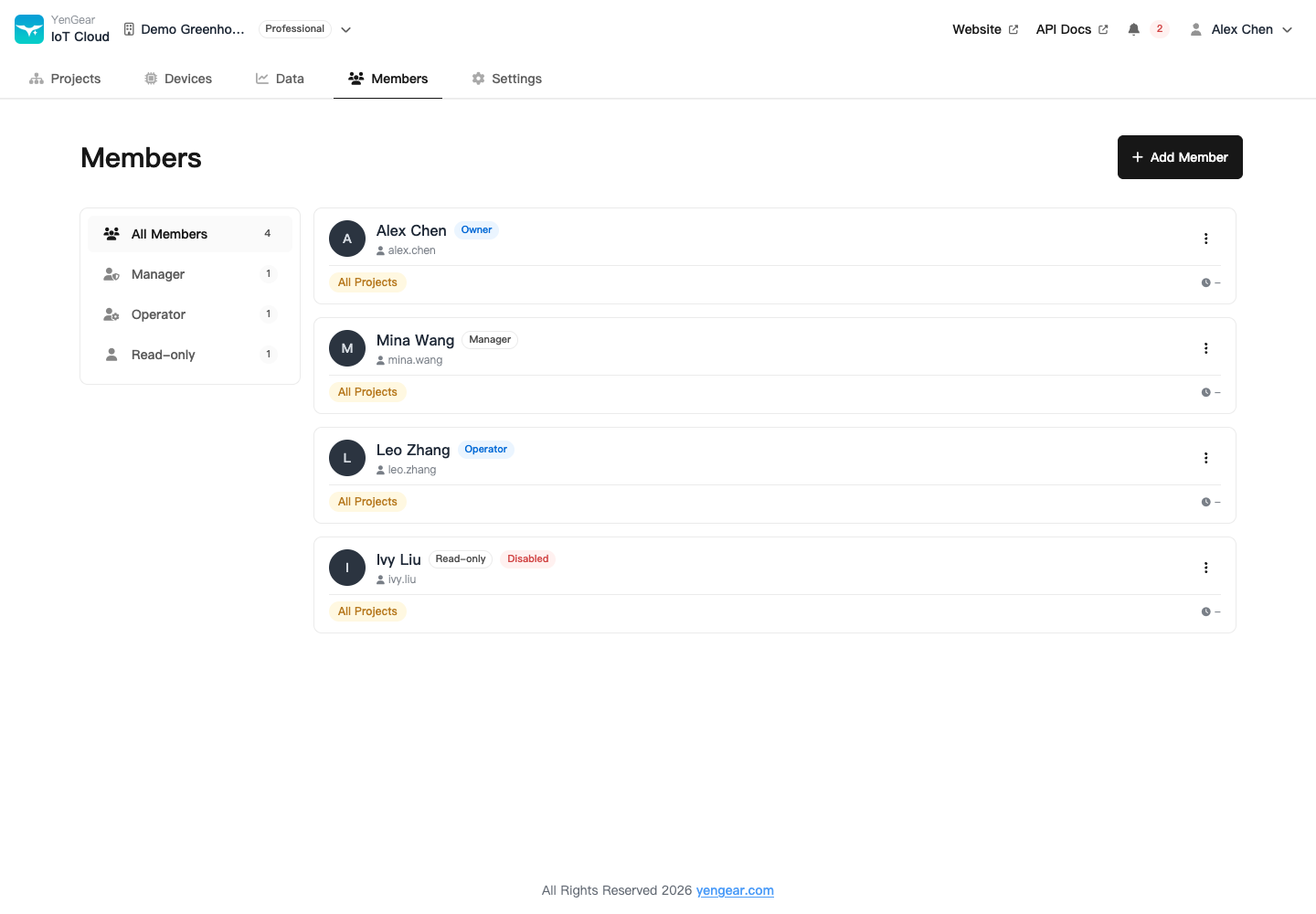
Add a member
- Switch to the target organization, open Members, and click Add Member.
- Choose an add method.
- For an existing or new account, enter its details, select a role and project scope, and save.
- Ask the member to sign in and check access to the assigned projects.
| Method | Use |
|---|---|
| Existing account | Enter the full username to add an account that already exists |
| New account | Set account details and a password, then create and add the account |
| WeChat QR code | The person scans the code in WeChat and confirms joining |
Members who join by WeChat QR code receive Read-only access to All Projects by default. Edit their permissions afterward if they need control access or a narrower project scope.
Existing-account lookup requires the full username and does not offer partial search. If the account is already in the organization, check it in the member list.
Assign a role and project scope
The role determines permitted actions; the scope determines accessible projects. Choose All Projects or Specific Projects. See Roles and project permissions.
Ask the member to refresh after a change. To suspend access temporarily, disable the member. Check the role and project scope again before restoring access.
Remove a member
Open the member's action menu, choose removal, and read the confirmation before submitting. Removal does not stop field equipment or revoke separately created access tokens used by other systems.
If this is the account's last organization, the confirmation explains account deactivation and its retention period. Review those consequences before proceeding.