
Appearance
Y961 Irrigation Controller User Manual
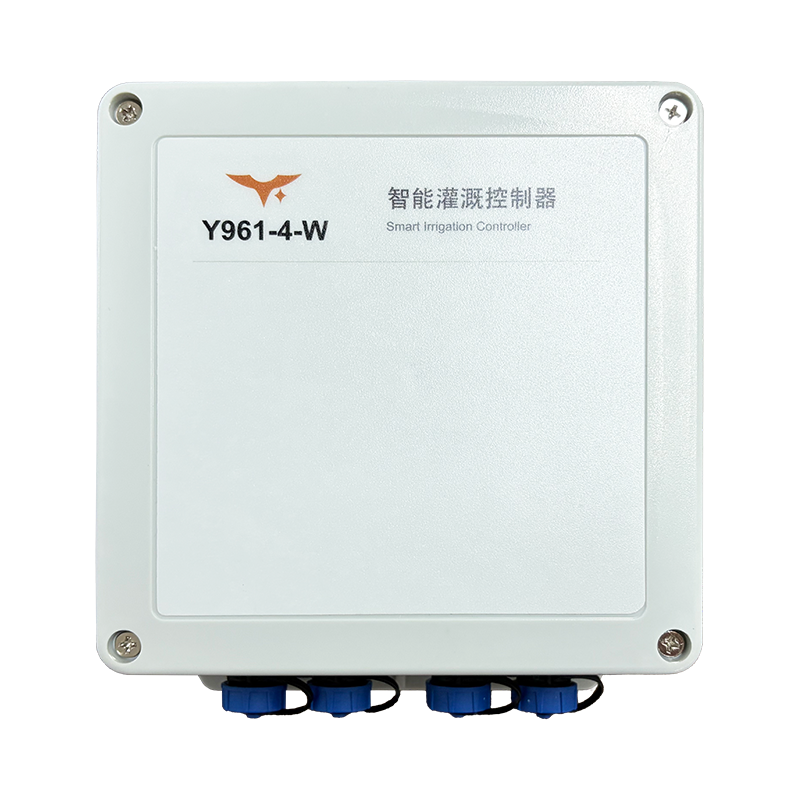
Applicable models: Y961-2-W and Y961-4-W
This manual covers installation, network access, Smart Irrigation Control System configuration, schedule publication, and troubleshooting for installers, project administrators, and operators.
The system workflow uses the current four-circuit Y961-4-W, which may report its model as Y961-04-W. Confirm system integration and firmware support for the two-circuit model at delivery; do not apply the four-circuit configuration directly. Interface illustrations show selected blocks from the Chinese Web App with preview data. Zone names, status, and dates are examples.
Read the Specification for ratings, model differences, and wiring limits. Use the device markings and supplied wiring documents for terminal numbering and project drawings.
Contents
- Before You Start
- Device and Interfaces
- Installation, Wiring, and Power-On
- Network Setup
- Configure Devices in the Smart Irrigation Control System
- Create and Publish Irrigation Schedules
- Daily Operation and Stopping Irrigation
- Troubleshooting
- Maintenance and Safety
1. Before You Start
Prepare:
- A Y961 controller; verify whether it is Y961-2-W or Y961-4-W
- A supply matching the delivered configuration: AC 220 V or DC 7–30 V
- Solenoid valves or other irrigation loads, cables, protection devices, and mounting accessories suitable for the project
- A project account, device identity information, and device permissions in the Smart Irrigation Control System
- Site 2.4 GHz Wi-Fi and network access to the system
- Safe test conditions that allow personnel to observe the loads
Check both current limits: maximum 5 A per circuit; maximum total 10 A for Y961-2 and 20 A for Y961-4.
2. Device and Interfaces
2.1 Model Meaning
The number identifies the control-circuit count. The -W suffix identifies Wi-Fi access. For example, Y961-4-W is a four-circuit Wi-Fi irrigation controller.
| Suffix | Meaning |
|---|---|
-W | Wi-Fi network access |
2.2 Interfaces and Output Logic
Y961 switches the input supply through each relay to the connected irrigation load. The outputs are not passive dry contacts.
| Configuration | Supply and Load Markings | Operation |
|---|---|---|
| AC | L / N | Accepts AC 220 V and switches AC power to loads |
| DC | + / - | Accepts DC 7–30 V and switches DC power to loads |
Use only one input supply type on a unit. Never connect AC and DC simultaneously. Do not connect an AC output configuration to a DC load, or a DC output configuration to an AC load.
3. Installation, Wiring, and Power-On
3.1 Mount the Controller
- Choose a dry, ventilated, accessible location protected from vehicle impact and direct irrigation-water impact.
- Secure the controller to suit the site structure. Keep cable tension off the connectors.
- IP66 protection requires correct enclosure, seal, and connector assembly. Do not operate the controller with the enclosure open or immerse it in water.
3.2 Connect Supply and Loads
- Disconnect the site supply and verify that no voltage remains at the supply terminals.
- Check the delivered configuration and select AC 220 V or DC 7–30 V input.
- Connect
L / Nfor AC or+ / -for DC according to the markings. - Connect each load to the corresponding two-core circuit output connector. Match the circuit number to its system zone binding.
- Check the 5 A limit for each circuit and the selected model's total current limit.
- Provide fusing, surge suppression, contactors, or other protection for solenoid valves, motors, pumps, and other inductive loads as required by the project.
- Check terminal tightness, connector locking, cable sealing, and enclosure closure.
Terminal numbering and project wiring drawings are not fixed in this manual. Follow the physical device markings and supplied wiring documents.
3.3 Power-On Checks
- Keep personnel and tools clear of energized parts.
- Apply power and check device status and whether the system reports the device online.
- Complete system configuration and site safety checks before operating high-power or high-inrush loads.
- Use a safe, short irrigation schedule for the initial test. Observe load action, circuit numbering, and stop time at the site.
4. Network Setup
4.1 Wi-Fi Setup
These steps apply to the current Y961-4-W provisioning version. Check the supplied instructions for other delivered versions.
- Prepare the site 2.4 GHz Wi-Fi name and password. Confirm stable coverage at the mounting point.
- Within 10 minutes after powering on the controller, use a phone or computer to find its
YenGear-hotspot. Verify the device identifier in the hotspot name. - Use the last eight characters of the device identifier as the hotspot password. Stay connected if the phone reports that the hotspot has no Internet access.
- Open the network setup page presented after connection. Select the site Wi-Fi, enter its password, and save.
- Wait for the page to report that Wi-Fi is connected, then return the phone or computer to its normal network.
- Sign in to the Smart Irrigation Control System and confirm the device is online. Wi-Fi connection alone is insufficient if the site network cannot reach the system.
The hotspot closes automatically 10 minutes after startup. If setup is incomplete or the site Wi-Fi must change, first confirm that irrigation can be interrupted, then restart the controller and repeat the steps. During an ordinary network interruption, the controller automatically attempts to reconnect; repeated provisioning is unnecessary.
If the setup page does not appear, confirm that the phone or computer is still connected to the device hotspot and that the 10-minute window has not expired. Contact the delivery team if the page remains inaccessible.
Do not use a successful phone-hotspot test as site-network acceptance. Verify the permanent network at the actual installation point.
5. Configure Devices in the Smart Irrigation Control System
The following workflow requires a project administrator. Viewers can read project data but cannot change devices, zones, schedules, or publish configurations. An account can access only its assigned project. Page names may change with system versions; follow the same configuration order.
5.1 Sign In and Check the Project
- Open the Smart Irrigation Control System.
- Sign in with the username and password assigned by the system administrator.
- Confirm the current project, project name, and time zone. The project time zone affects schedule dates, start times, and schedule compilation.
- Use Project Overview to check online devices, irrigation zones, enabled schedules, and devices that are offline or not synchronized.
- Open the appropriate page:
- Device Management: add devices, edit names and notes, check models and circuit counts, and enable or disable devices.
- Zones and Circuits: create zones and bind device circuits to them.
- Irrigation Schedules: create, edit, enable, or disable schedules and publish configurations.
- Logs: inspect operation and irrigation logs.
- Personal Information: check the account, project, and role, and change the login password.
- Project Settings: check the project identifier and time zone. The current version does not store site Wi-Fi passwords or manage firmware OTA on this page.
Project Overview summarizes devices, zones, and schedules. It does not establish whether a valve is delivering water. Output records in irrigation logs are also not physical field feedback.
5.2 Add and Verify a Device
- In Device Management, select Add Device.
- Enter the device identity, a recognizable site name, and optional notes, then save.
- Wait for the first connection or heartbeat. The system uses the reported model and circuit count to create the circuits.
- Verify the model, network type, and circuit count. The current four-circuit device reports
Y961-04-Wand should create four circuits. If these differ, check device identity and the delivered version before binding zones or publishing. - Edit circuit names, roles, and enabled states. Match circuit names to physical site labels.
A device already assigned to another project cannot be claimed again. The original project administrator must transfer or unbind it.
The device editor's Allow Access setting controls connection permission. The device list's Enabled setting controls participation in schedule compilation. They are different settings; neither is a site emergency stop. A circuit marked Reserved cannot be bound to an irrigation zone.
Unbinding does not stop schedules already stored on the device. Before transfer, disable the required schedules, publish, and confirm application as described in Section 7. If the device is offline or must stop immediately, handle it at the site before unbinding.
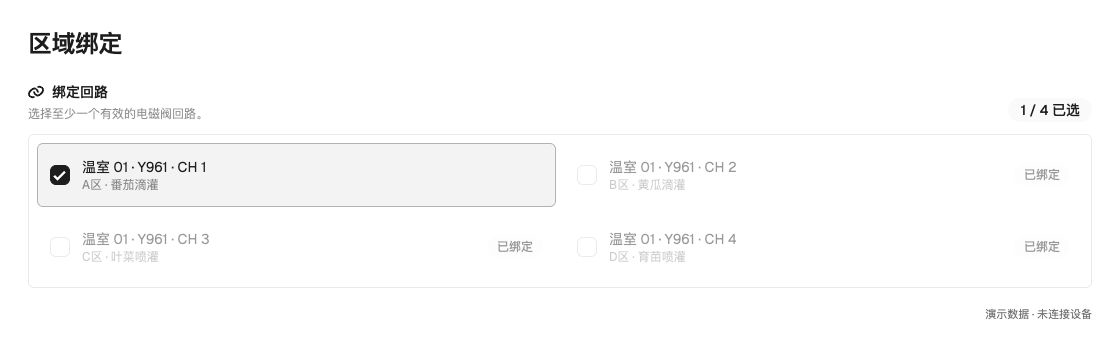
5.3 Create Zones and Bind Circuits
- In Zones and Circuits, create a zone for a greenhouse, plot, or valve group.
- Bind the appropriate physical Y961 circuits to the zone.
- Record the relationship between physical circuit numbers and system names.
- After saving, check every binding to prevent an incorrect output assignment.
Use names that match site labels or valve numbers, such as East Greenhouse Zone 1, rather than ambiguous names such as Channel 1.
Filter zones by name, zone ID, device, or circuit. A zone can contain multiple device circuits. Each circuit can belong to only one zone; reserved circuits and circuits already assigned elsewhere cannot be bound again.
6. Create and Publish Irrigation Schedules
6.1 Create a Schedule
- Open Irrigation Schedules and create a schedule.
- Select the zones to irrigate. Their output circuits come from the bindings in Section 5.3.
- Choose one-time, daily, or weekly execution and set start times in the project time zone. For weekly schedules, select the weekdays.
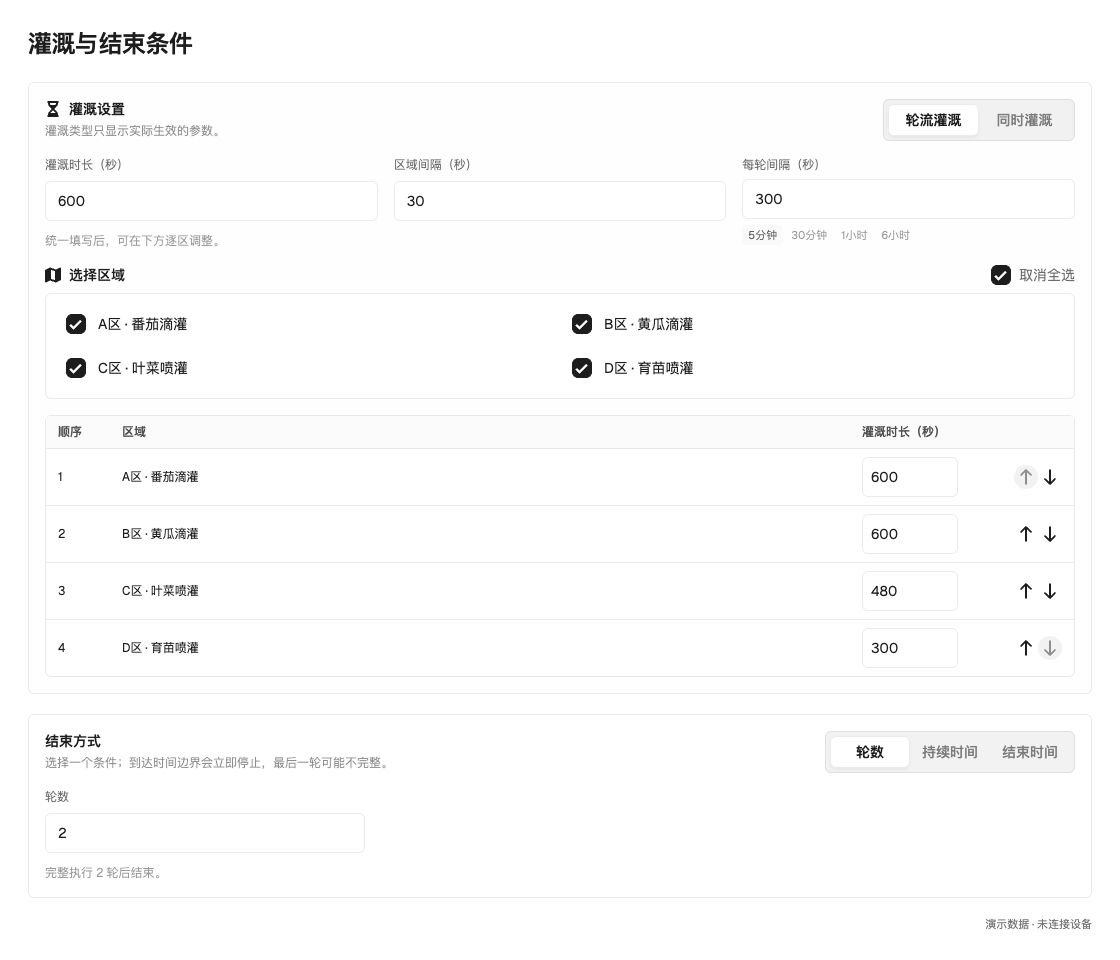
- Choose sequential or simultaneous irrigation. Set zones, irrigation durations, and applicable intervals.
- Choose one ending condition: number of rounds, total duration, or end time.
- Check zone order, applicable dates, water-supply capacity, and total current, then save.
| Setting | Function |
|---|---|
| Sequential irrigation | Runs zones in order; a delay can be set between adjacent zones |
| Simultaneous irrigation | Runs selected zones together; check water capacity and combined circuit current |
| Round interval | Delay after one round finishes and before the next begins |
| End by round count | Stops after the specified number of rounds |
| End by duration | Repeats within the specified duration and stops when it expires |
| End by time | Repeats between the start and end times and stops at the specified end time |
For example, run four zones sequentially for 600, 600, 480, and 300 seconds, with 30 seconds between zones. Set two rounds and a 300-second round interval. With daily starts at 06:00 and 16:00, each start uses that sequence. These values illustrate configuration; they are not crop irrigation recommendations.
Several schedules can be active together. A circuit remains on while any active schedule requires it; ending one schedule may not turn it off. After changing the project time zone, review the times and publish again.
6.2 Publish Schedules
- Check device online status and schedule contents.
- Review all pending project changes, then publish. Publication includes the project's device, zone, and schedule configuration, not only the last edited schedule.
- Wait for publication to finish. Check synchronization for every device and confirm that its active version matches the target version.
- On first use or after a schedule change, observe the site or run a safe, short test to verify output order and timing.
Only a published and applied schedule becomes the device's execution configuration. Saving a draft does not change the schedule currently running on the device.

After publication, devices receive and apply configurations separately and may not change at the same time. An irrigating device applies the new configuration at an appropriate point. Offline devices update only after reconnection. Until application is confirmed, assume the old schedule may still be running.
6.3 Publication Status and Version History
- Check publication status in Irrigation Schedules. Statuses distinguish unpublished changes, publishing, failed publication, published configurations, and devices awaiting synchronization.
- After submitting publication, other pages remain available. Return to Project Overview or Irrigation Schedules to confirm the published version and synchronization of each enabled device.
- Open Version History to inspect recent schedule versions, publication time, publisher, project time zone, and device and schedule summaries.
- Select two versions to compare devices, circuits, zones, and schedules. To restore a version, restore it to the draft, review the draft, and publish manually.
Restoring history replaces only draft device-enabled states, circuit settings, zones, and schedules. Restoration itself does not change the devices, device heartbeats, hardware capabilities, or project time zone.
6.4 Network Interruptions
After successful time synchronization, a device with valid time can continue executing its stored valid schedules during a temporary network interruption. It cannot receive new configuration while offline, and displayed status may be stale.
The current version stops irrigation when more than 24 hours have elapsed since the last successful time synchronization. Restore network access and synchronize time before operation can continue. This does not guarantee a fresh 24 hours of operation after every disconnection.
After power-on, all outputs initially remain off. Even if schedules are stored, the device must connect and synchronize time before deciding whether to run at the current time. Power restoration does not immediately restore previously active circuits.
The device does not make up all missed irrigation. A round-count schedule may skip a run if its start was missed. A duration- or end-time-based schedule that recovers within its valid window continues at the original progress and ends at the original time. After reconnection, verify online status, valid time, and configuration synchronization.
The system displays the most recently reported software state. The standard version does not provide physical valve-position, flow, pressure, or load-action feedback. Arrange field checks for important irrigation work.
7. Daily Operation and Stopping Irrigation
7.1 Change a Schedule
Save and publish after changing times, zones, or durations. Confirm that the device is online and has applied the new configuration before leaving the site.
To disable a schedule, disable it, publish, and confirm application on the affected devices. To keep a circuit off, also check whether other enabled schedules use it. Disabling, unbinding, or disconnecting the network does not replace an immediate stop.
7.2 Immediate Stop
The standard version does not provide immediate manual forced control or emergency stop from the Smart Irrigation Control System. For leaks, valve faults, hot wiring, overcurrent, or other hazardous conditions:
- Disconnect Y961 or load power according to the site's safety procedure.
- Confirm that the loads have stopped and remove the hazard.
- Check wiring, load current, protection devices, and schedule configuration.
- Do not restore power or republish until the fault has been identified.
7.3 Site Handover
Record the model, device identity, location, input supply type, circuit-binding list, and active schedules for maintenance and project handover.
7.4 View Logs
- In Logs, filter Operation Logs by operator, object type, result, and time range to inspect device, zone, schedule, and publication changes.
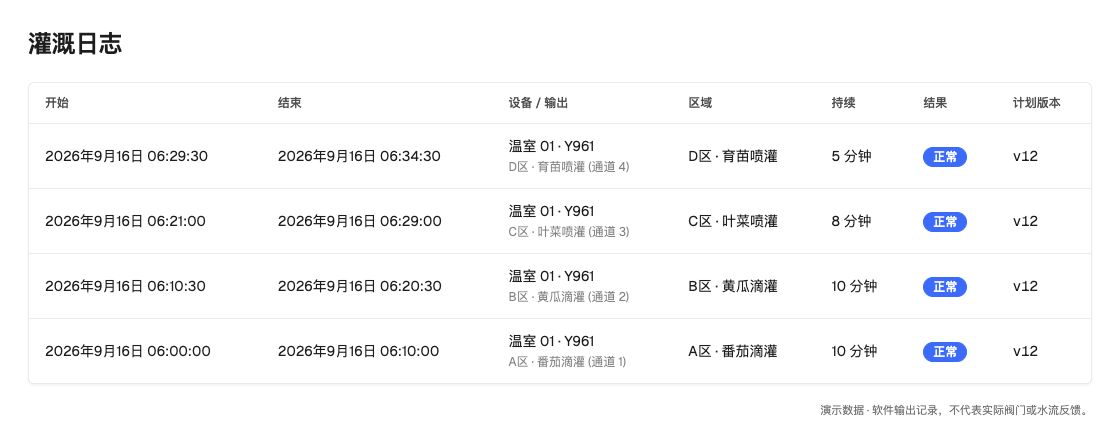
- In Irrigation Logs, filter device-reported runs by device, zone, result, and time range.
- Irrigation logs record reported software output commands and execution results. They do not confirm physical valve, water-flow, or current feedback. The system retains a rolling 30 days of irrigation logs based on receipt time.
8. Troubleshooting
| Symptom | Possible Cause | Action |
|---|---|---|
| Device does not operate | Missing supply, wrong supply type, open protection device, or loose wiring | Disconnect power and check supply, polarity, fuses, and terminals. Verify that AC and DC are not both connected. |
| Device has power but is offline | Incomplete Wi-Fi setup or blocked site network access | Repeat Wi-Fi setup and ask the network administrator to check site network policy. |
| Incorrect circuit count in the system | Wrong identity, no initial report, or unsupported delivered version | Verify the physical unit, identity, and reported model. The current four-circuit version should show four circuits; do not manually apply another model's configuration. |
| Saved schedule does not run | Still a draft, unpublished, not yet active, or not received by the device | Check dates and times, publish, and verify the device is online and synchronized. |
| Output action does not match the zone | Incorrect zone binding, circuit record, or wiring | Stop the schedule and check bindings and load wiring against site labels, circuit by circuit. |
| System shows on but the valve does not move | Output wiring, valve, supply, or protection fault; status is not physical feedback | Disconnect power and inspect the circuit and load. Verify with instruments or field inspection. |
| Tripping, overheating, or abnormal connectors | Circuit or total current exceeded, high inrush, or poor connection | Disconnect power immediately. Measure load and total current and inspect terminals; add a contactor or select suitable equipment if needed. |
| Unexpected schedule behavior offline | No valid local schedule, configuration not applied, or more than 24 hours since successful time synchronization | Restore connectivity and verify time synchronization and the active version. Repeated publication alone is insufficient; arrange field checks for important work. |
9. Maintenance and Safety
- Disconnect power before wiring, removing cables, opening the enclosure, or servicing.
- Keep within 5 A per circuit, the 250 VAC / 30 VDC switching ratings, and the unit's total current limit.
- Never connect AC and DC simultaneously to one unit.
- Do not treat the outputs as passive dry contacts.
- Inspect enclosure seals, connector locking, cable insulation, terminal temperature, and site weather protection regularly.
- Stop use immediately if there is enclosure damage, water ingress, a burning smell, abnormal heating, or repeated tripping. Have qualified personnel investigate.
- IP66 does not permit immersion. Do not direct high-pressure cleaning water at connectors or seals.
- System schedules do not replace site emergency stops or electrical protection. Prioritize site safety measures when personnel, equipment, or water-supply safety is affected.
- Manufacturer: Hunan YenGear Tech Co., Ltd.
- Address: Room 21014, Building 1, Fudi Xingguang Tiandi, Yingxin Road, Yuhua District, Changsha, Hunan, China
- Email: [email protected]
- Website: www.yengear.com